From quote to booking
A practical guide to finding an FBA rate, comparing plans and sending a booking request with Luckylucky.
Start a quoteChoose the right path
Start from the LLIFF home page, Get a quote or SCAAS Online Inquiry.
- Find the FBA form
- On the LLIFF home page, choose Check FBA rates. You can also choose Get a quote in the navigation, then Amazon FBA. SCAAS Online Inquiry opens the same FBA rate path.
- FBA shipment
- Use online rates for Amazon FBA Air Freight or Sea Freight LCL. Select the FBA warehouse, origin and cargo details to request current plans.
- Custom shipment
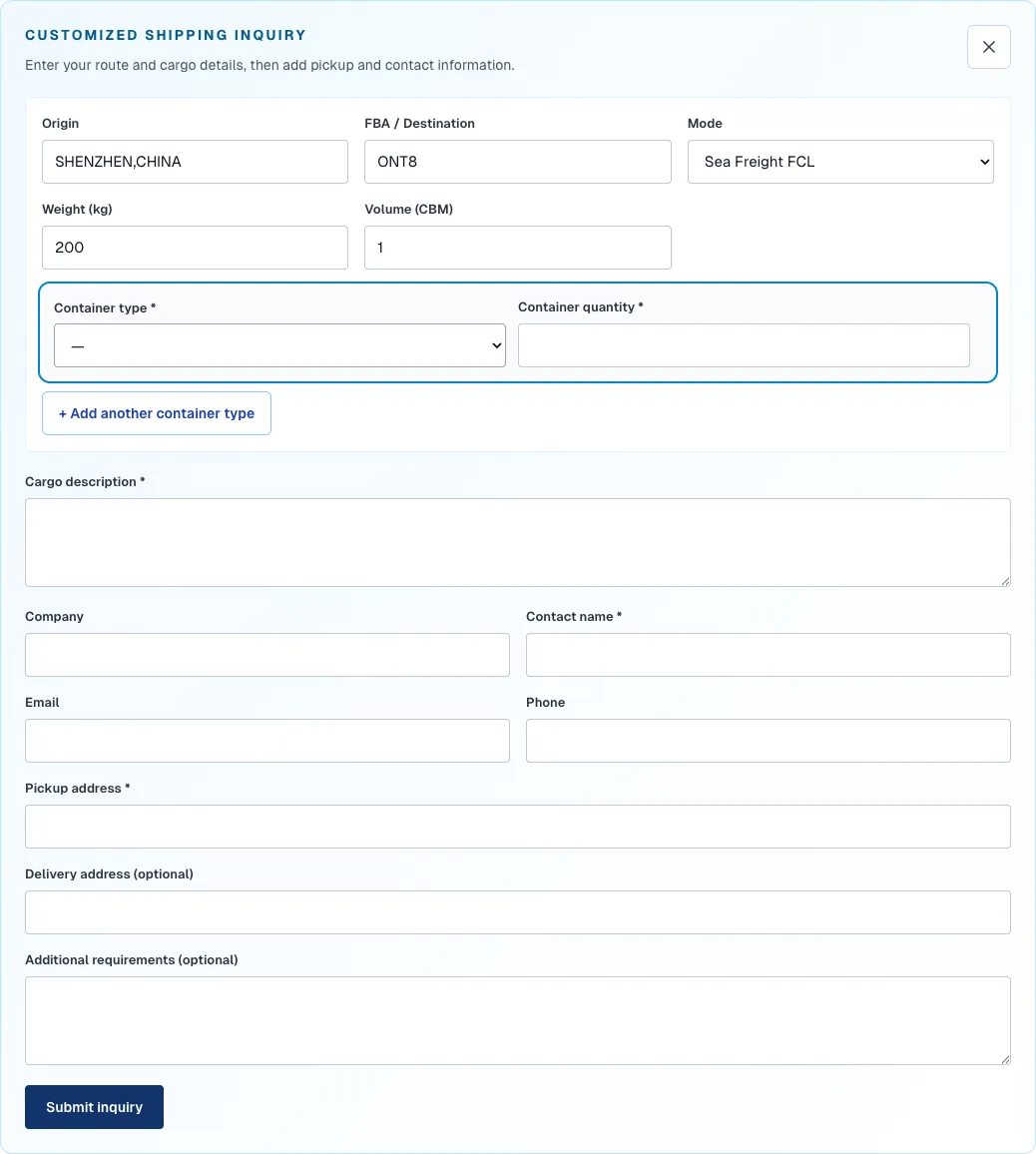
- Choose customized shipping inquiry for Sea Freight FCL, a general destination, an unlisted route or cargo that needs manual review.

Select the FBA destination and origin
Choose the Amazon warehouse first so the origin list can load routes serving it.
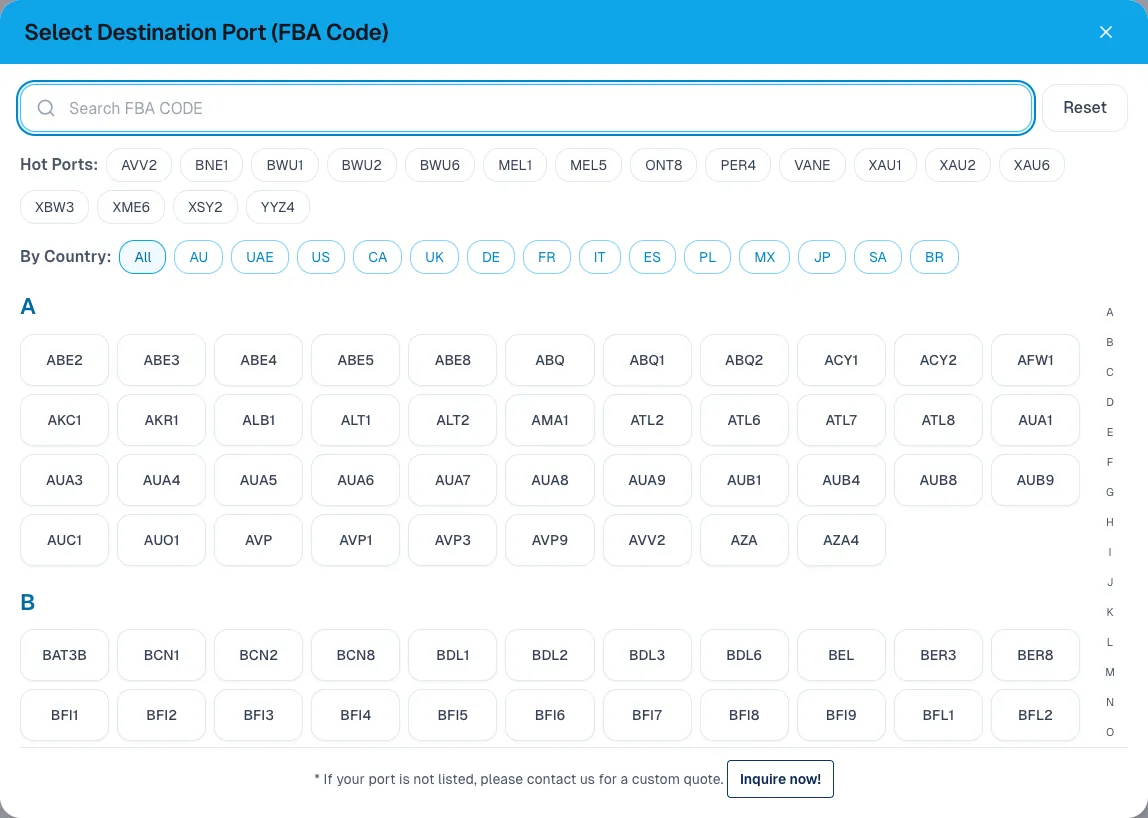
- Open the warehouse picker
- Use the FBA code field. Search by code or warehouse name, choose a popular code, filter by country, or jump with the A–Z rail. All shows every market, and Reset clears the search and country filter.
- Pick a code
- Select one warehouse code to close the picker. If the warehouse is absent, use the custom inquiry action at the bottom of the picker.
- Choose an origin
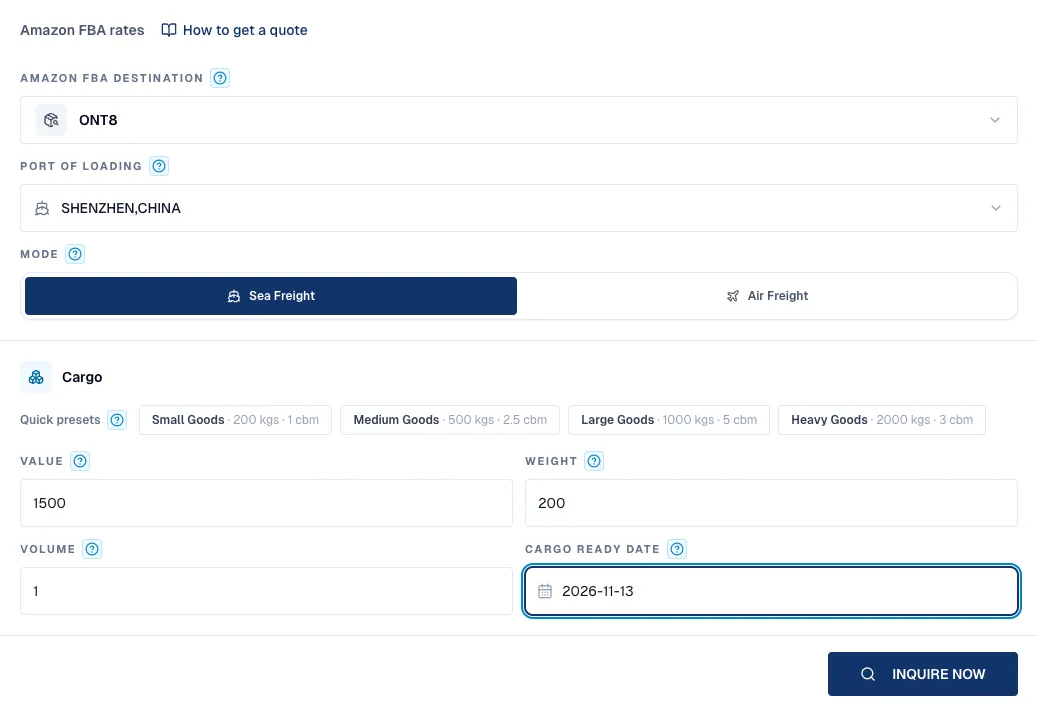
- The port of loading list loads after the FBA code. Most supported origins are coastal ports in China; ports outside China also appear where service is available. SHENZHEN,CHINA is preferred when available. Select your actual origin.
- Choose transport
- Select Sea Freight LCL or Air Freight. A missing origin or temporarily unavailable rate list calls for waiting, trying again or sending a custom inquiry.
Enter cargo and timing
Complete the three cargo numbers before asking for a rate.
- Declared value
- Enter a positive goods value in USD for the cargo. It informs the duty and tax estimate.
- Weight and volume
- Enter positive gross weight in kg, including packaging, and packed volume in CBM.
- Try a quick example
- Small Goods fills USD 1,500, 200 kg and 1 CBM. Medium Goods fills USD 5,000, 500 kg and 2.5 CBM. Large Goods fills USD 10,000, 1,000 kg and 5 CBM. Heavy Goods fills USD 20,000, 2,000 kg and 3 CBM. Adjust the numbers to your shipment.
- Optional cargo ready date
- Choose today or a future cargo ready date. Use the calendar arrows to change month, Today to jump to today, or Clear to leave it blank. The result shows its own closing date and estimated delivery.
Check and compare live results
Select Inquire now. If the button is unavailable, check that you selected a warehouse and an available port and entered three positive cargo values.
- Wait for the check
- The form checks routes and prices. You can use the routes already listed while it checks for more. If prices are temporarily unavailable or a request fails to load, try again later.
- Handle no match
- If no current plan matches or the available rate schedule has expired, open the customized inquiry form for a manually checked rate.
- Read the range and badges
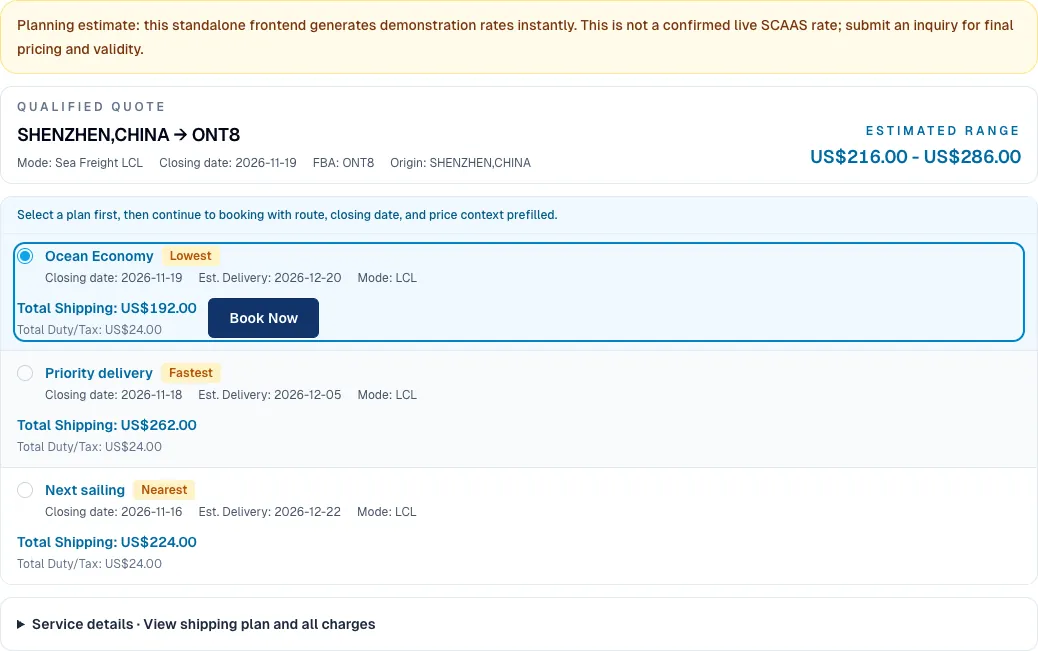
- The estimated range runs from the lowest to the highest grand total among shown plans. Lowest price uses grand total, nearest closing uses the earliest closing date, and fastest uses the earliest estimated delivery. A plan can meet several criteria, while its visible badge shows one.
- Compare the full amount
- Check the plan grand total with freight and listed duty or tax. The shipping amount alone may exclude duty and tax.
Review the selected plan
Select a plan to inspect its service details before continuing.
- Check the dates
- The cargo ready date is your input. The plan closing date is the deadline for that sailing or service, and estimated delivery is the projected arrival.
- Inspect charges
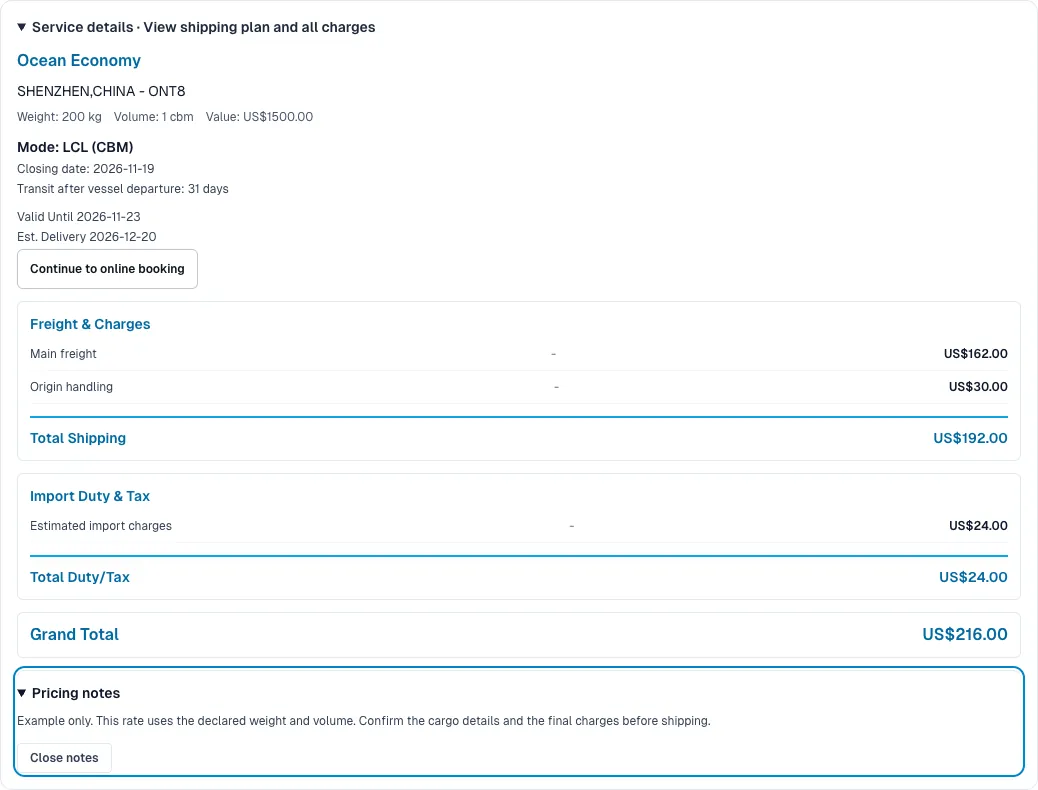
- Open Service details to see the route, transport basis, freight and related charge rows, import duty and tax rows, and grand total.
- Read terms
- Review the closing date, any related charges and the Valid Until date. Expand the notes to read the complete rate conditions. Ask about additional services in the custom inquiry or at booking.
- Keep the quote current
- If you change a route or cargo input, search again. An expired selected rate needs a new current quote before booking.
Continue to booking or send a custom inquiry
A selected online plan carries its known details into the booking flow.
- Hand off the selected plan
- Select the plan, then choose Book Now or Continue to booking. Sign in when asked. The route, closing date, price context and known cargo totals are carried forward.
- Complete the booking request
- Review shipper and contact details, pickup information, detailed cartons and products. Enter both the FBA Shipment ID and FBA Reference ID for each FBA shipment. Check the selected closing date, review the summary and submit the booking request.
- Understand confirmation
- A submitted request records your intent. Space and final charges need Luckylucky and carrier confirmation. If the handoff fails or the rate expires, return to Inquiry for a current plan.
- Use the custom form
- Enter origin, FBA code or general destination, mode, cargo description, pickup address, contact name and either email or phone. Add weight and volume if known, plus delivery address and requirements when relevant. For FCL, select container type and quantity for each container group. After submission, keep the displayed reference receipt.
Questions and answers
Getting a quote
What should I enter for “FBA destination code”?
Choose the Amazon FBA warehouse code you want to ship to, such as SIN8, BWU2, or ONT8. Select this first so the system can load only origin ports that actually serve that destination. Example: BWU2 for an Amazon Australia warehouse route.
What should I enter for “Port of loading”?
This list is dynamic. It only shows origin ports that have available service to the selected FBA destination. If your supplier city or port is missing, use the custom inquiry link so the team can check manually. Example: SHENZHEN,CHINA when goods are ready in South China.
What should I enter for “Shipping method”?
Sea Freight LCL is usually best for standard replenishment and heavier cargo. Air Freight is better for urgent, lighter shipments. For a full container, request a custom quote.
What should I enter for “Goods value”?
Enter the declared value of the goods before adding international freight. Enter a positive amount in USD. It helps estimate duty, tax, and route costs. Example: 5000 means USD 5,000.
What should I enter for “Gross weight”?
Enter a positive total shipment weight in kilograms, including cartons, packaging, and pallets if used. Weight can affect chargeable weight and which service plan is recommended. Example: 500 for 500 kg.
What should I enter for “Goods volume”?
Enter a positive total cargo volume in CBM after packaging. For sea LCL, volume often has a direct impact on freight and chargeable volume. Example: 2.5 for 2.5 cbm.
What should I enter for “Cargo ready date”?
This date is optional. If you enter one, choose today or a future date when your cargo will be ready. Quote results show each plan’s closing date and estimated delivery.
Where should I specify my trade terms?
If your trade term affects origin pickup or charges, describe it in a custom inquiry or confirm it with the team during booking.
How do I request additional services?
Request insurance, storage, or other extras in a custom inquiry or discuss them with the team during booking. They may change the final price.
How do I describe special cargo?
Describe batteries, liquids, magnets, fumigation, COO, or special export needs in a custom inquiry or tell the team during booking so they can check the route and charges.
How do I get a quote?
Submit after FBA code, origin port, value, weight, and volume are filled. The result shows available plans, pricing detail, any duty/tax estimate, and the next booking action.
What happens after I get a quote?
Select the plan you prefer before clicking Book Now. The selected plan is passed to the booking flow with its route, closing date, and price context.
Booking space
Do I need an Amazon FBA quote to book a non-Amazon shipment?
No. A non-Amazon (general) booking can be started directly from Book Space without an online FBA quote. Choose “General / Non-FBA” in the booking summary. Amazon FBA bookings start from a quote and ask for the FBA Shipment ID and Reference ID.
Which origin ports can I choose for a non-Amazon booking?
The origin list offers the common China loading ports: SHANGHAI,CHINA, SHENZHEN,CHINA, NINGBO,CHINA, QINGDAO,CHINA, TIANJIN,CHINA, YIWU,CHINA, XIAMEN,CHINA, GUANGZHOU,CHINA. Type the first letters to filter the list.
How do I enter the destination of a non-Amazon booking?
Start typing a port and country in the form “PORT,COUNTRY”, for example ROTTERDAM,NETHERLANDS; HAMBURG,GERMANY; ANTWERP,BELGIUM; FELIXSTOWE,UNITED KINGDOM; SOUTHAMPTON,UNITED KINGDOM. The suggestion list holds 60 base ports across Europe, North America, Asia, the Middle East, Oceania, Latin America and Africa. If your destination is not listed, you can type it in full and customer service will check it.
Which shipping methods are available for a non-Amazon booking?
You can choose SEA FREIGHT LCL / SEA FREIGHT FCL / AIR FREIGHT. For FCL you must also choose the container type and the number of containers.
What do I need to fill in for an FCL (full container) shipment?
Choose “SEA FREIGHT FCL”, then select the container type (20GP, 40GP, 40HQ, 45HQ, 20RF, 40RF, 20OT, 40OT, 20FR, 40FR) and enter the number of containers. Both are required before you can continue.
What is the cargo ready date?
It is the date your goods are packed and ready for pick-up or delivery to the port or warehouse. Pick it from the calendar; dates in the past cannot be chosen. It replaces the earlier “cut-off date” field.
What cargo types can I choose?
The cargo type list is: General cargo / Contains battery / magnetic / Liquid / powder / cream / Dangerous goods / Fragile / oversized. If none fits, choose “Other” and describe the cargo in your own words. Weight, volume and goods value are optional at this step and can be refined with the carton details.
What format do the FBA Shipment ID and FBA Reference ID need?
Use 3 to 80 characters: letters, numbers, periods, underscores, slashes or hyphens, starting with a letter or number. Both are required for Amazon FBA bookings and hidden for non-Amazon bookings.
Can my shipper fill in the cargo details for me?
Yes, for Amazon FBA bookings. Save the draft, then use “Invite shipper”: your shipper receives a private link to complete the cargo and pickup details. You review their submission before it is added to your booking.
Can I save a booking and continue later?
Yes. Drafts are saved to your account automatically. Open “Booking history drafts”, pick one and confirm; it replaces the current form. You can select several drafts and archive them.
Can I fill in the cargo details from an Excel template?
Yes. Use “Download the Excel template”, fill it in and upload it. For Amazon FBA bookings the system recognises the file and shows the data in the normal form so you can check and change it. Non-Amazon templates are stored with your booking for customer service to key in.
What does the red number beside a step mean?
After you leave a step, the red number shows how many required items on it are still missing. Open the step to see them. The review step also lists everything that is missing.
Documents and what happens next
Which documents can I upload, and in what format?
You can upload Commercial invoice, Packing list, Purchase order (P/O). Accepted formats: JPEG, PDF, Excel, Word. Files are stored with your booking and are not read automatically; customer service uses them to complete the booking details.
Does submitting a booking confirm my space and the freight cost?
No. Submitting is a booking request only. It does not mean Luckylucky has confirmed space or the final freight charges. Space is subject to the carrier’s actual confirmation. The final price is based on the cargo measurements taken by the carrier on arrival and the final confirmed rates. Our customer service will contact you as soon as possible.